 79854dfdef
ctrl+f, or Go to chat in the command palette, opens a fuzzy search over the chat tab names and switches to the chat picked. Switching with ctrl+tab or ctrl+shift+tab set the active tab but left nothing focused, so typing went nowhere until the prompt was clicked. Both now focus the new chat's prompt, as Go to chat does. Closes #52.
4.2 KiB
Commands & shortcuts
Commands
By pressing ^ Ctrl+p you can access the command palette from where you can perform most of the chat actions. The following commands are available:
New chat- create a new chat sessionEdit chat parameters- edit the current chat session (change system prompt, tools, parameters, or thinking)Toggle thinking- turn thinking mode on or off for the current session (not persisted)Copy message- copy the last message of the current chat to the clipboardRename chat- rename the current chat sessionExport chat- export the current chat session as markdownDelete chat- delete the current chat sessionClear chat- clear the chat history, preserving the chat configuration (provider, model, system prompt, tools, parameters, and thinking)Regenerate last message- regenerates the last assistant message. Useful if you want to change the system prompt or parameters, or just try again.Prompt history- browse previously sent prompts in the current chat and re-use one.Show logs- shows the logs of the current oterm session.Go to chat- search the chats by name and switch to one.
The palette also surfaces Textual's built-in commands (Theme, Quit, Keys, Screenshot, Maximize/Minimize).
Keyboard shortcuts
The following keyboard shortcuts are supported:
-
^ Ctrl+q - quit
-
Enter - send the message
-
Shift+Enter or ^ Ctrl+m - insert a newline; the prompt grows to fit (up to 10 lines)
-
^ Ctrl+i - select an image to include with the next message
-
↑/↓ (while messages are focused) - scroll the messages
-
^ Ctrl+o - copy the last message of the current chat to the clipboard
-
^ Ctrl+l - show logs
-
^ Ctrl+n - open a new chat
-
^ Ctrl+t - toggle thinking mode for the current session (not persisted)
-
^ Ctrl+Tab - open the next chat
-
^ Ctrl+Shift+Tab - open the previous chat
-
^ Ctrl+f - search the chats by name and switch to one
The prompt is always a multi-line input that auto-grows as you type or paste; long lines wrap. To recall a previously sent prompt, open Prompt history from the command palette (^ Ctrl+p).
While the model is inferring the next message, you can press Esc to cancel the inference.
!!! note If the key bindings clash with your terminal, it is possible to change them by editing the configuration file. See Configuration.
Images
^ Ctrl+i opens an image browser. The selected image is inserted into the prompt as an [Image #N] token, and the model receives the image at that point in the text. Backspace deletes a token as a whole.
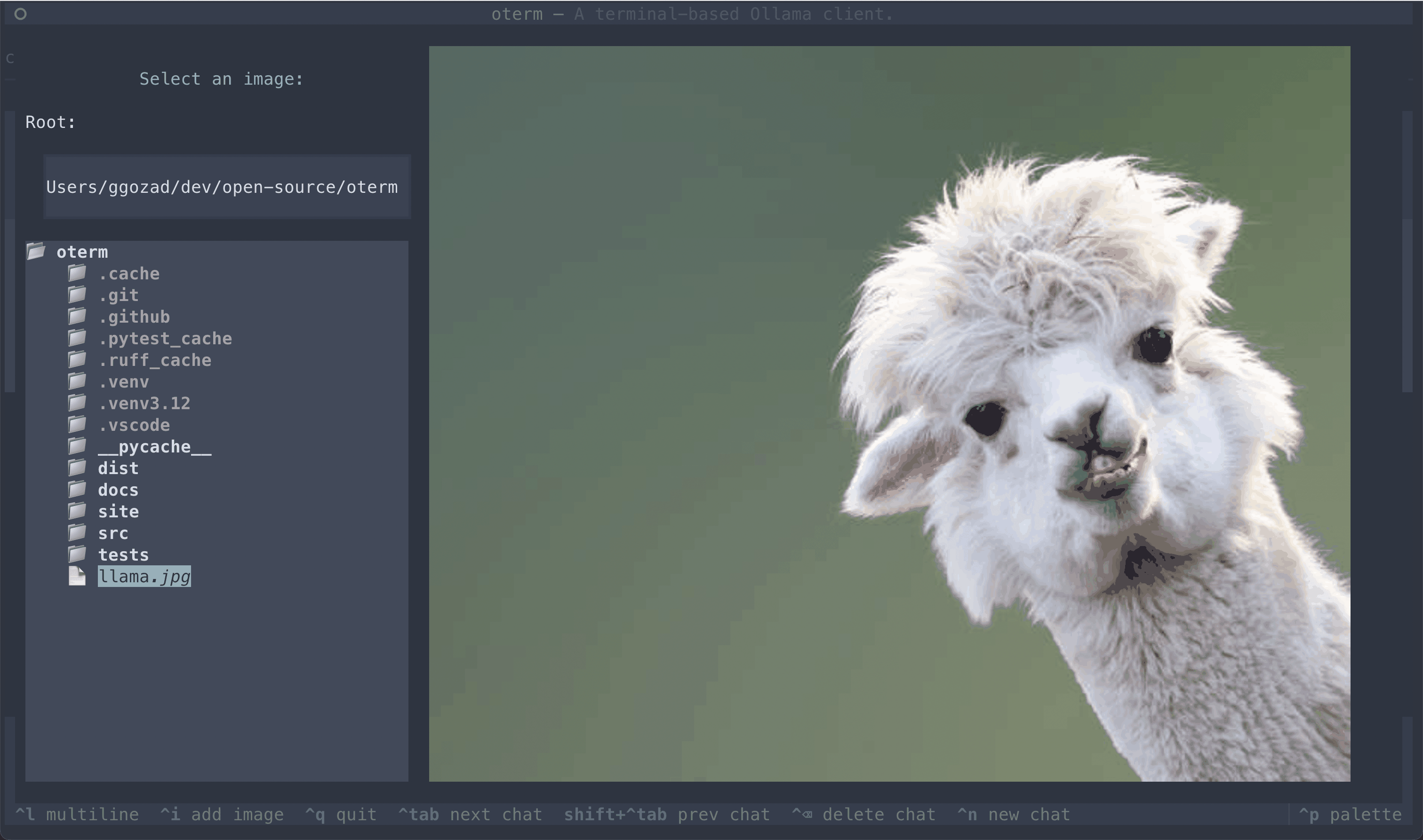 The image selection interface.
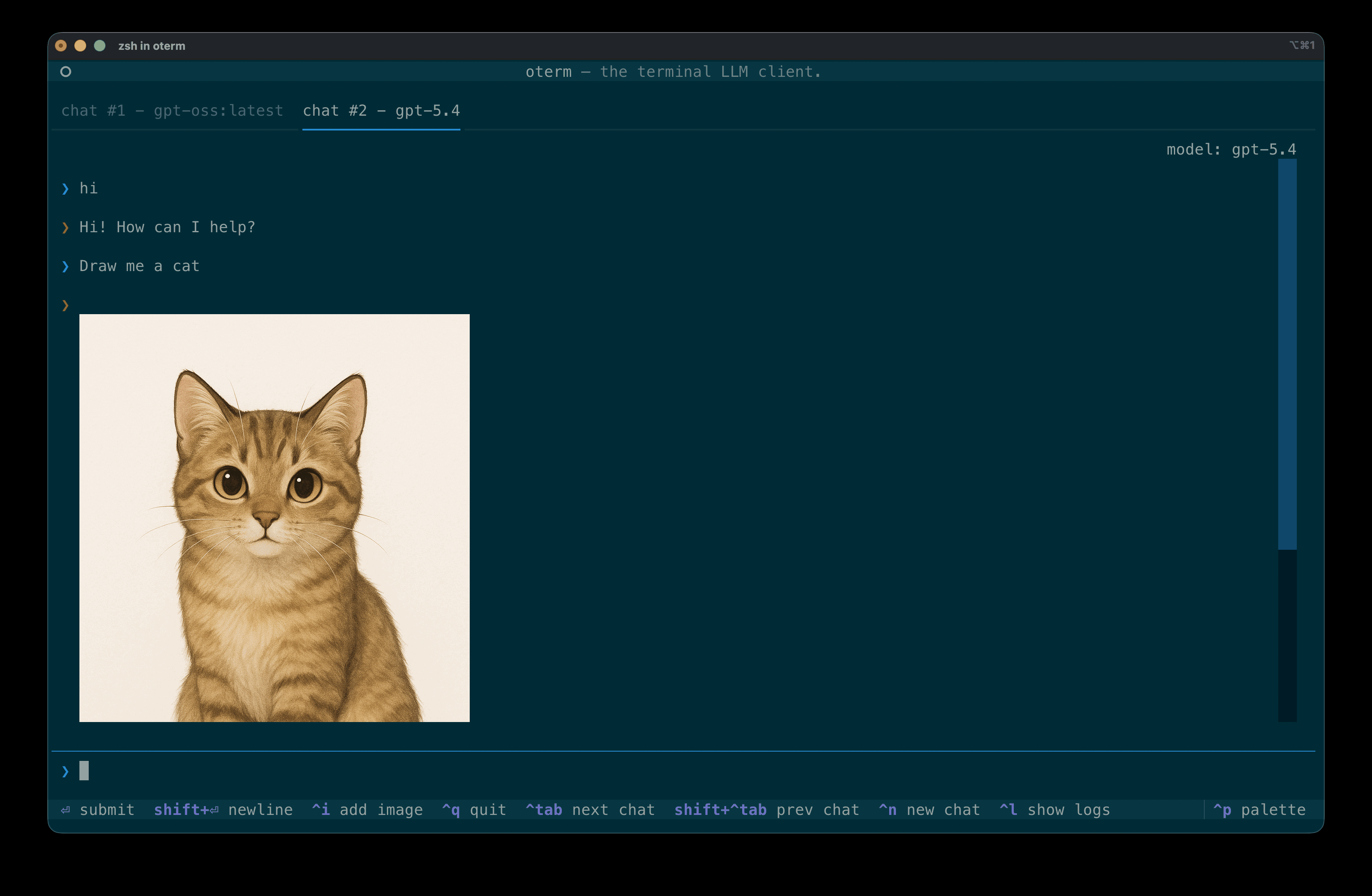 Images returned by the model are rendered inline in the chat. Click an image to save it to
 $OTERM_DATA_DIR/downloads/.
Copy / Paste
It is difficult to properly support copy/paste in terminal applications. You can copy blocks to your clipboard as such:
- ^ Ctrl+o will copy the last message of the current chat to the clipboard.
- clicking a message will copy it to the clipboard.
For most terminals there exists a key modifier you can use to click and drag to manually select text. For example:
iTermOption key.Gnome TerminalShift key.Windows TerminalShift key.
Command-line options
| Option | What it does |
|---|---|
--version, -v |
Print the version and exit. |
--data-dir |
Print the data directory and exit. |
--db |
Print the path of the chat database and exit. |
--config |
Print the settings read from the environment (OLLAMA_URL, OTERM_DATA_DIR, …) and exit. OLLAMA_API_KEY is masked. |
--upgrade |
Connect the MCP servers, apply any pending database upgrades and exit. oterm also applies them at startup. |
--help, -h |
Show the options and exit. |