# oterm
the text-based terminal client for [Ollama](https://github.com/jmorganca/ollama).
## Features
* intuitive and simple terminal UI, no need to run servers, frontends, just type `oterm` in your terminal.
* multiple persistent chat sessions, stored together with system prompt & parameter customizations in sqlite.
* can use any of the models you have pulled in Ollama, or your own custom models.
* allows for easy customization of the model's system prompt and parameters.
## Installation
Using `brew` for MacOS:
```bash
brew tap ggozad/formulas
brew install ggozad/formulas/oterm
```
Using `yay` (or any AUR helper) for Arch Linux:
```bash
yay -S oterm
```
Using `pip`:
```bash
pip install oterm
```
## Using
In order to use `oterm` you will need to have the Ollama server running. By default it expects to find the Ollama API running on `http://127.0.0.1:11434`. If you are running Ollama inside docker or on a different host/port, use the `OLLAMA_HOST` environment variable to customize the host/port. Alternatively you can use `OLLAMA_URL` to specify the full http(s) url. Setting `OTERM_VERIFY_SSL` to `False` will disable SSL verification.
```bash
OLLAMA_URL=http://host:port/api
```
The following keyboard shortcuts are supported:
* ^ Ctrl+N - create a new chat session
* ^ Ctrl+E - edit the chat session (change template, system prompt or format)
* ^ Ctrl+R - rename the current chat session
* ^ Ctrl+S - export the current chat session as markdown
* ^ Ctrl+X - delete the current chat session
* ^ Ctrl+T - toggle between dark/light theme
* ^ Ctrl+Q - quit
* ^ Ctrl+L - switch to multiline input mode
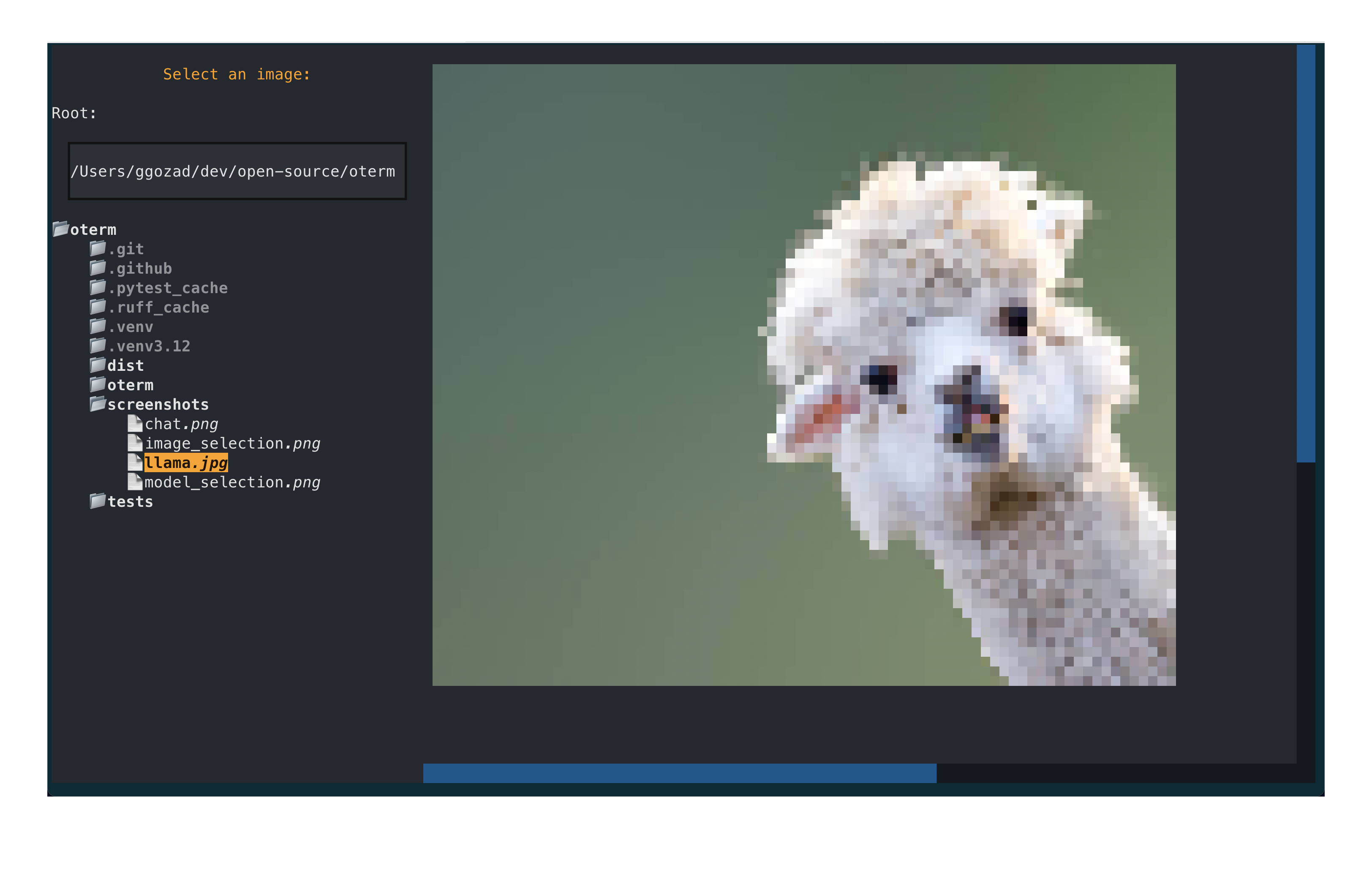
* ^ Ctrl+P - select an image to include with the next message
* ↑ - navigate through history of previous prompts
* ^ Ctrl+Tab - open the next chat
* ^ Ctrl+Shift+Tab - open the previous chat
In multiline mode, you can press Enter to send the message, or Shift+Enter to add a new line at the cursor.
While Ollama is inferring the next message, you can press Esc to cancel the inference.
Note that some of the shortcuts may not work in a certain context, for example pressing ↑ while the prompt is in multi-line mode.
### Copy / Paste
It is difficult to properly support copy/paste in terminal applications. You can copy blocks to your clipboard as such:
* clicking a message will copy it to the clipboard.
* clicking a code block will only copy the code block to the clipboard.
For most terminals there exists a key modifier you can use to click and drag to manually select text. For example:
* `iTerm` Option key.
* `Gnome Terminal` Shift key.
* `Windows Terminal` Shift key.
### Customizing models
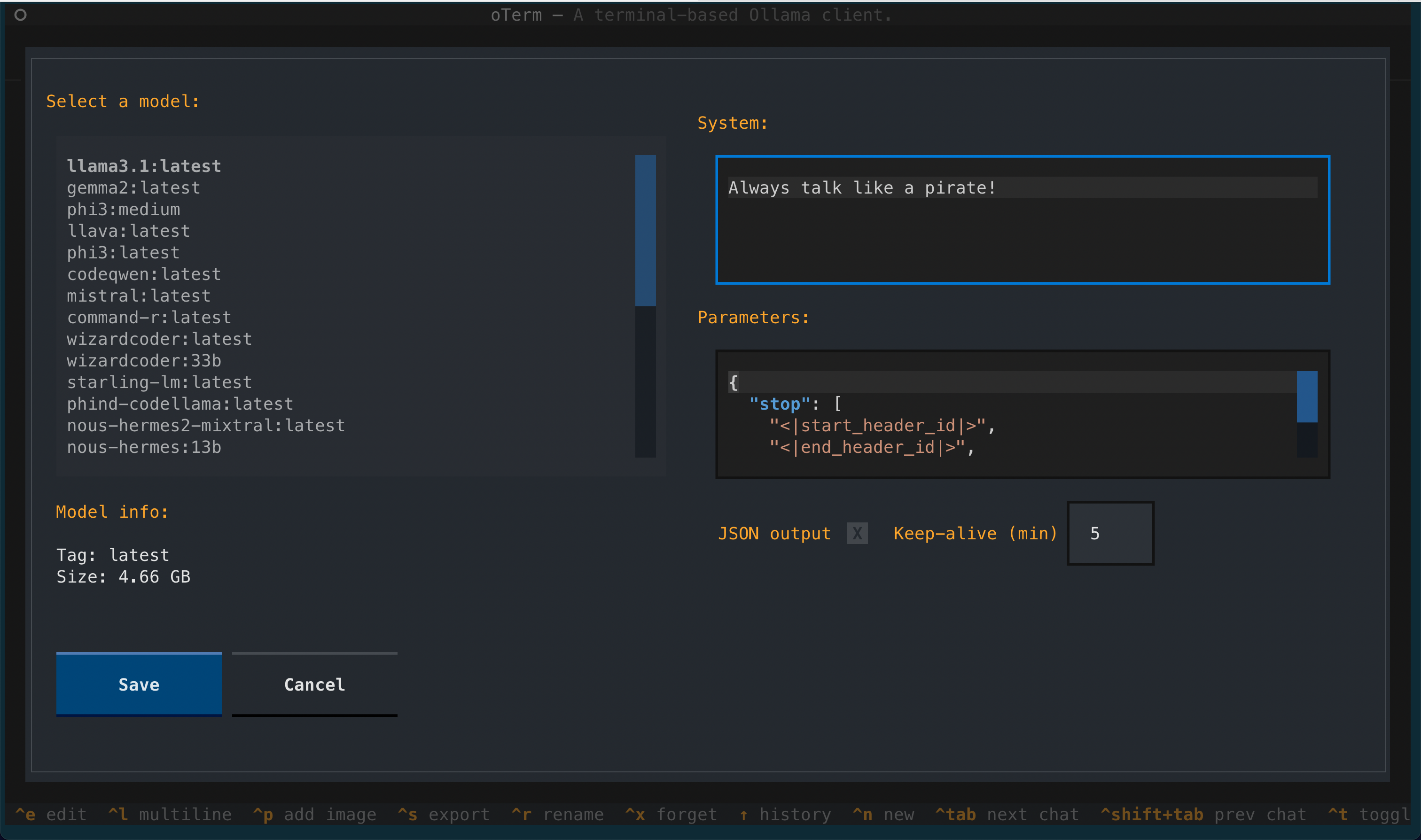
When creating a new chat, you may not only select the model, but also customize the the `system` instruction as well as the `parameters` (such as context length, seed, temperature etc) passed to the model. For a list of all supported parameters refer to the [Ollama documentation](https://github.com/ollama/ollama/blob/main/docs/modelfile.md#valid-parameters-and-values). Checking the `JSON output` checkbox will force the model to reply in JSON format. Please note that `oterm` will not (yet) pull models for you, use `ollama` to do that. All the models you have pulled or created will be available to `oterm`.
You can also "edit" the chat to change the system prompt, parameters or format. Note, that the model cannot be changed once the chat has started.
### Chat session storage
All your chat sessions are stored locally in a sqlite database. You can customize the directory where the database is stored by setting the `OTERM_DATA_DIR` environment variable.
You can find the location of the database by running `oterm --db`.
### Screenshots

## License
This project is licensed under the [MIT License](LICENSE).